




Create custom action in Power Automate

If Power Automate doesn't have an action that you need, you can always create it yourself.
Here is how to create an action that extracts text from a PDF
Sign into Power Automate at https://flow.microsoft.com. In the left panel, click on Data > Custom connectors. Then in the top right click on "+New custom connector". Select "Create from blank".

Give your connector a name. Mine is "Automate Office Work".
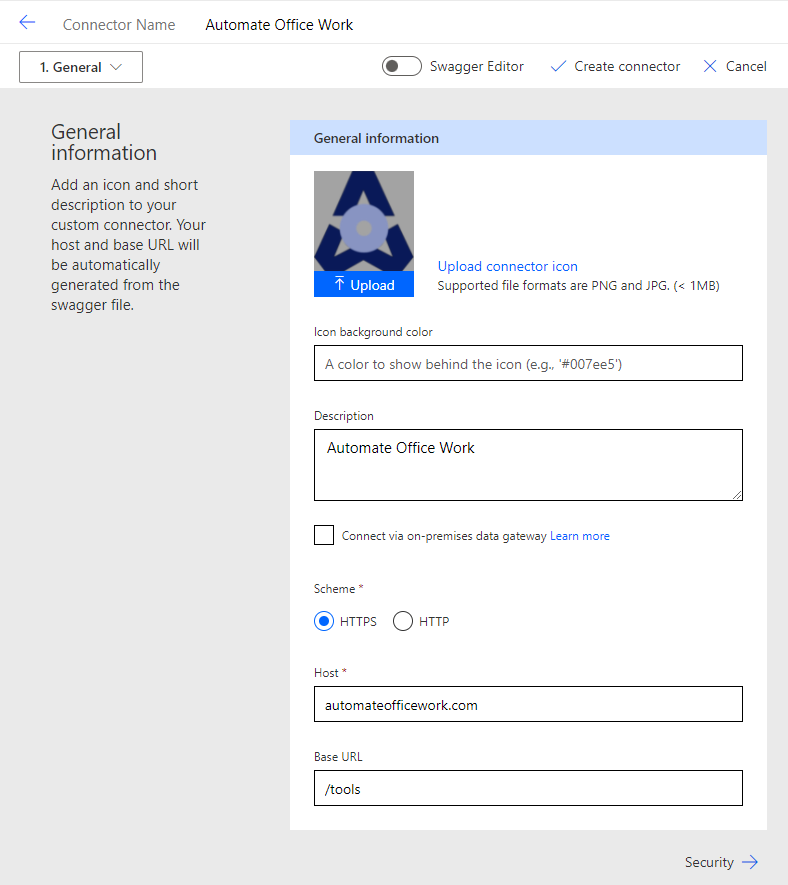
I filled in the details of my connector shown above. Your connector will need to use a server that you own to host it. That server will be doing the actions that you code there and then Power Automate can use them as actions inside itself.

On the definitions tab is where you define your various actions and triggers. Above I created a new action called "PDF to TXT". Clicking "+Import from Sample" opens the side panel on the right where you fill in the inputs you will be sending to your server and the URL it will be calling. Here I have a single input called "file" which will be the file contents of a PDF. Click "Import".

Click "body" > Edit as shown above.
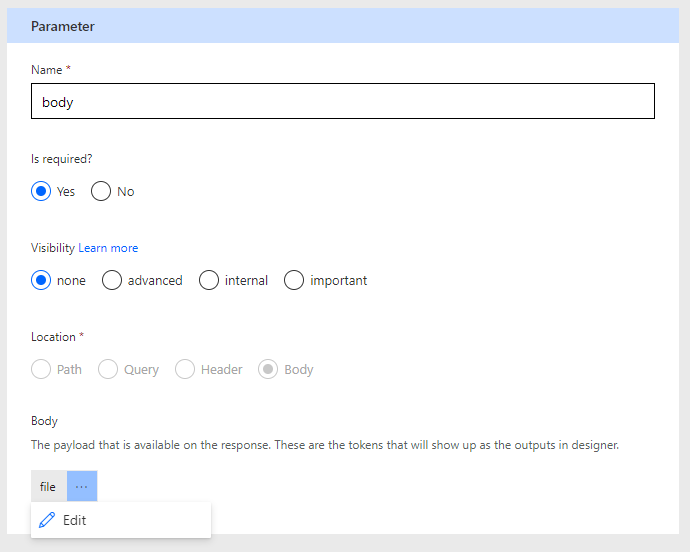
Mark the "body" parameter as required. Indicate that the type is "string" and format is "byte". Then click "file" > Edit as shown above.

Give the file parameter a title like "File" and description like "PDF file contents in Base64". Mark it as required. Click "Update connector" and wait for your connector to be prepared. You can now test your connector in a Power Automate flow. You will also need to prepare your server to receive the inputs, process them, and return an output back to Power Automate.
Preparing Your Server to Connect with Power Automate
My server is able to use a popular open-source language called PHP. Using PHP I can do more powerful things like extract text from a PDF. So on my server at automateofficework.com I created a folder called "tools" and a folder inside of that called "pdftotxt" and a file inside that called index.php. Index.php looks like below:
<?php
header("Access-Control-Allow-Origin: *");
$post = json_decode(file_get_contents('php://input'), true);
file_put_contents('test.pdf',base64_decode($post["file"]));
include 'pdfparser/vendor/autoload.php';

$parser = new \Smalot\PdfParser\Parser();
$pdf    = $parser->parseFile('test.pdf');
unlink('test.pdf');
$data = $pdf->getText();

echo(json_encode($data));
?>
This index.php is expecting to receive a input called 'file'. It takes this input and decodes it from Base64 back into binary and it creates a temporary PDF called test.pdf. We then use an open source tool called PDFParser which can be found at https://github.com/smalot/pdfparser. This is also located on my server and we run PDFParser and we point it to the test.pdf that we just created. We delete the pdf immediately and we extract the text into a variable called $data. We then echo (print or output) this extracted text to the page and Power Automate will then get this output.
Testing this action in Power Automate
Now that we have created the action in Power Automate and set up our server to receive the inputs, process them, and deliver back the outputs, we are ready to test out our custom action in Power Automate.
Back in Power Automate
Use the "Manually trigger a flow" trigger shown below.

Next, on the trigger click "Add an input". Select "File".
Add an action after the trigger. It will be in the "Custom" tab. Find the connector that you created. Mine is called Automate Office Work below. Then select the PDF to TXT action.

In the "File" box, select the "File Content" from the trigger.
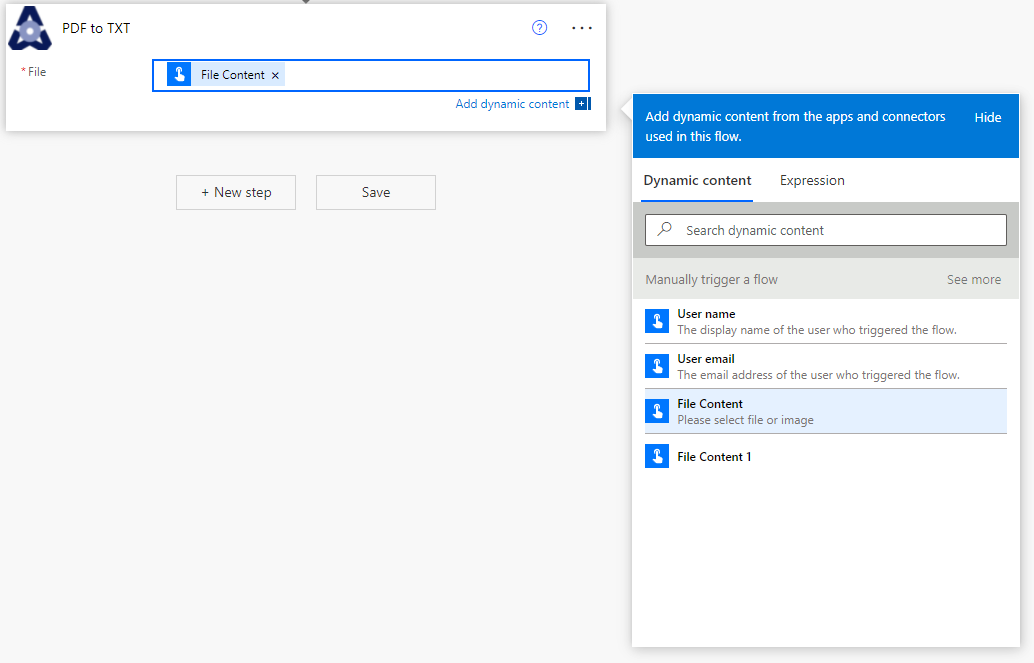
Save your flow and that's it! You can test your flow manually. It will prompt you to choose a file. Select a PDF. After a second, the flow runs successfully. Look at the run and you will see the output from the PDF to TXT action like mine below.

Above you see the inputs is the PDF File content in Base64 format starting with "JVBERi0xL...." and the output is "Certificate\t \t\n \nDate:\t 't20 Nov 2021...." This is the extracted text from the PDF shown below.

You now know the basics for creating your own custom connector and action. What feature is Power Automate missing that you would really like to create for yourself? Discuss in the comments below.
Note
If you don't want to go set up your own server with PHP just to extract text from a PDF, I have set up my server so that you can use it too. Just create your own action and point it to https://automateofficework.com/tools/pdftotxt/index.php
Even if you don't want to set up your own Connector in Power Automate, you can still try out at https://automateofficework.com/files/pdftotxtexample.html. You can view the source of that page to see how to make the Ajax call to post the content of the PDF file to extract the PDF's text.