




Modern Script Editor

The Modern Script Editor web part is one of the most powerful things we have for unlocking the potential of SharePoint. Many of the things offered by Automate Office Work require that this web part be turned on. It is powerful. It will allow SharePoint pages to run customized code that can manipulate data on the logged-in user's behalf. In most cases, this is exactly what we want. We want our code to manipulate data on our behalf.
You may already have this web part available to you. Go to a SharePoint where you can create content. Click on the gear in the top-right corner and click on "Site Contents". Now at the top of the page click "+New". Click "Page". On your new page, just below the Title banner, hover the mouse near the top of the white content section until you see a plus sign in a gray circle appear. Click this plus sign. A box appears with all the web parts that you have available to you. Either scroll down or search for "Modern Script Editor".

If you have this web part then you are in luck. Your IT department has already installed the web part for you. And we can go to the next step.
If you do not see this web part, your IT department will need to make it available for you.
(These instructions are for SharePoint administrators in your IT department). Turning on Modern Script Editor for modern pages:
1. Sign into Microsoft 365 through the browser and go to the SharePoint Admin Center: https://<tenant>-admin.sharepoint.com
2. Click on Settings from the left navigation >> Click on "Classic settings page" (https://<tenant>-admin.sharepoint.com/_layouts/15/online/TenantSettings.aspx) >> Scroll down to "Custom Script" section
3. Under the Custom Script section, Set "Allow users to run custom script on personal site" and "Allow users to run custom script on self-service created sites" options.
4. Click on "OK"to save your changes.
5. Go to SharePoint Admin Center https://<tenant>-admin.sharepoint.com/
6. Click More features > Apps > Open
7. Click Apps you can add > Classic experience
8. Go to https://<tenant>.sharepoint.com/sites/appcatalog/_layouts/15/tenantAppCatalog.aspx/manageApps
9.Click for Classic experience
10. Go to https://<tenant>.sharepoint.com/sites/appcatalog/AppCatalog/Forms/AllItems.aspx
11. Upload new app
12. The code for the app can be found at https://www.sharepointdiary.com/wp-content/uploads/2020/12/pzl-script-editor.sppkg (current version from 2020)
Full instructions to install at https://www.sharepointdiary.com/2020/11/add-custom-css-to-sharepoint-online-modern-page.html
1. Sign into Microsoft 365 through the browser and go to the SharePoint Admin Center: https://<tenant>-admin.sharepoint.com
2. Click on Settings from the left navigation >> Click on "Classic settings page" (https://<tenant>-admin.sharepoint.com/_layouts/15/online/TenantSettings.aspx) >> Scroll down to "Custom Script" section
3. Under the Custom Script section, Set "Allow users to run custom script on personal site" and "Allow users to run custom script on self-service created sites" options.
4. Click on "OK"to save your changes.
5. Go to SharePoint Admin Center https://<tenant>-admin.sharepoint.com/
6. Click More features > Apps > Open
7. Click Apps you can add > Classic experience
8. Go to https://<tenant>.sharepoint.com/sites/appcatalog/_layouts/15/tenantAppCatalog.aspx/manageApps
9.Click for Classic experience
10. Go to https://<tenant>.sharepoint.com/sites/appcatalog/AppCatalog/Forms/AllItems.aspx
11. Upload new app
12. The code for the app can be found at https://www.sharepointdiary.com/wp-content/uploads/2020/12/pzl-script-editor.sppkg (current version from 2020)
Full instructions to install at https://www.sharepointdiary.com/2020/11/add-custom-css-to-sharepoint-online-modern-page.html
Once the web part is installed site-wide, it must then be installed on each individual SharePoint by going to https://<tenant>.sharepoint.com/sites/<sharepoint>/_layouts/15/appStore.aspx/myApps?entry=NewAppInSite&sorting=1&search=modern
Or click on Settings > Add an app > Add instance of app
Or click on Settings > Add an app > Add instance of app
There is a second step that IT must do to allow us to run any custom code on SharePoint pages. The Modern Script Editor is normally meant to run in a sand-boxed web part in a SharePoint page. By running the following command, it allows us to create any HTML pages we want on our SharePoint and SharePoint will display them for us.
(To be done by a SharePoint admin in IT)
For each SharePoint Site, run SharePoint Online Management Shell:
Connect-SPOServic-Url https://<tenant>-admin.sharepoint.com
Set-SPOsite https://<tenant>.sharepoint.com/sites/<sharepoint>-DenyAddAndCustomizePages 0
Full instructions at https://codigomaven.blogspot.com/2021/06/how-to-fix-sharepoint-online-modern.html
For each SharePoint Site, run SharePoint Online Management Shell:
Connect-SPOServic-Url https://<tenant>-admin.sharepoint.com
Set-SPOsite https://<tenant>.sharepoint.com/sites/<sharepoint>-DenyAddAndCustomizePages 0
Full instructions at https://codigomaven.blogspot.com/2021/06/how-to-fix-sharepoint-online-modern.html
Once everything is done, it's time to test. Go to your SharePoint that you control and where the Modern Script Editor web part has been installed and customizing of pages is allowed. Go to your Site Settings. Create a new Document Library. Inside your Document Library upload a new HTML file, like test.aspx. You may find that you can upload and open pages ending in .html, but Microsoft may prefer that they end with .aspx. So upload test.aspx in the root folder of your document library. Then go to to the URL of your document library/test.aspx in a browser.
I created a test.aspx file with the contents simply: Hello, world
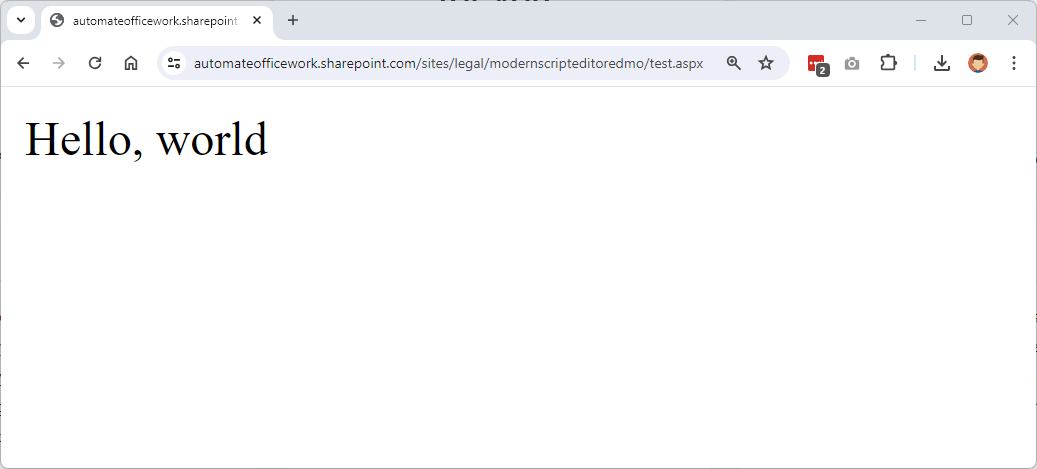
We can now run any code we want on SharePoint. Our page starts with a blank canvas and we can build anything we want. The handcuffs are off.
NOTE: For an HTML page to display, the person who last edits the page must have ownership rights of the entire SharePoint at the time of editing.
