




Installing Template Library for SharePoint
Alright. So you bought the code offered for sale on PayHip after ensuring that your SharePoint has Modern Script Editor turned on and you are able to display custom HTML pages as outlined at https://automateofficework.com/modern_script_editor.
Installing the code for use in SharePoint requires the following steps:
Templates SharePoint
If you did not already install the Template Library for Outlook, you may need to create a SharePoint that will act as a repository for your templates. I recommend making this as its own separate SharePoint since the max number of documents allowed on a single repository is 30 million. You never know, you may be working with lots of documents once you start adding up all your SharePoint projects. So it's better to start separating them now.
I created a daughter SharePoint to my Legal SharePoint at https://automateofficework.com/sites/legal/templates. I made sure to turn on Modern Script Editor for this SharePoint. Then here we create a document library also called Templates to house our tree of folders and document templates. We make this document library by default readable only to department members and give ownership rights for certain team folders to the respective team. They can choose to give edit rights to team members and then manage access themselves. A team may wish to make a certain folder readable by everybody in the company. This is required for the next steps.
But first we need to create a Column in the Templates library to hold information about each template that we want to display to users for the unique template page. To do this, go to your Templates library and click "+Add Column".
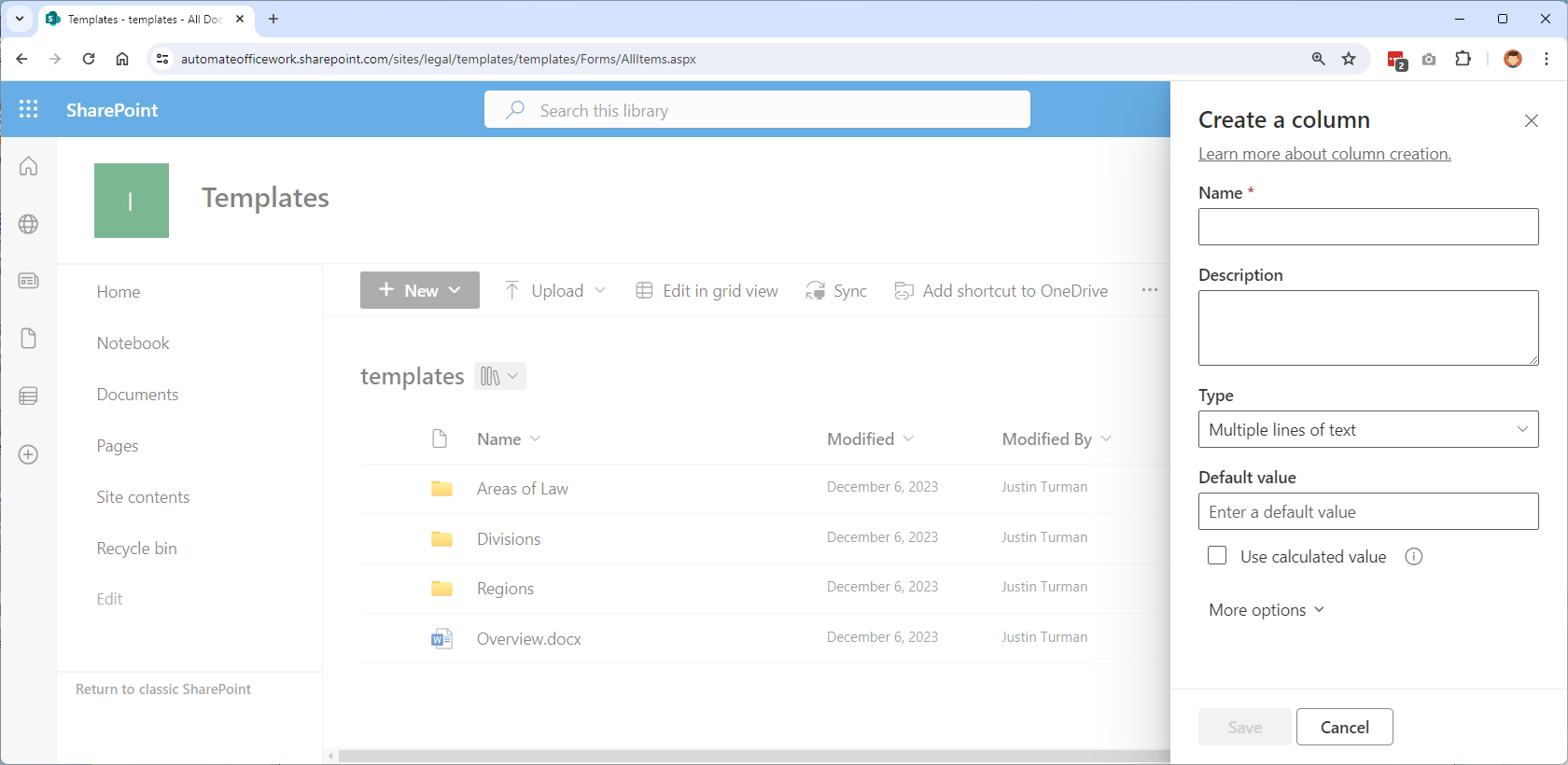
Select Multiple lines > Next. Give it a name "page". Default value is "{ }".
Create a tree of folders for your templates and upload your template document files. Make it so by default all your files are read only by your department. No one else. Then make different team leaders owners of their team's main folder. The team owners can now give edit rights to their folder and children folders to various team members. Now choose a folder you want to make available to people outside your department to view and remember its URL.
Pages Document Library
Next we need to create another document library in the same SharePoint where the templates are stored, but this document library will be open for anyone to visit. Not locked down like the templates document library. I've created a new template library at https://automateofficework.sharepoint.com/sites/legal/templates and named in "Pages". Place in here the code from the "Pages" folder. Your document library should now look like below.
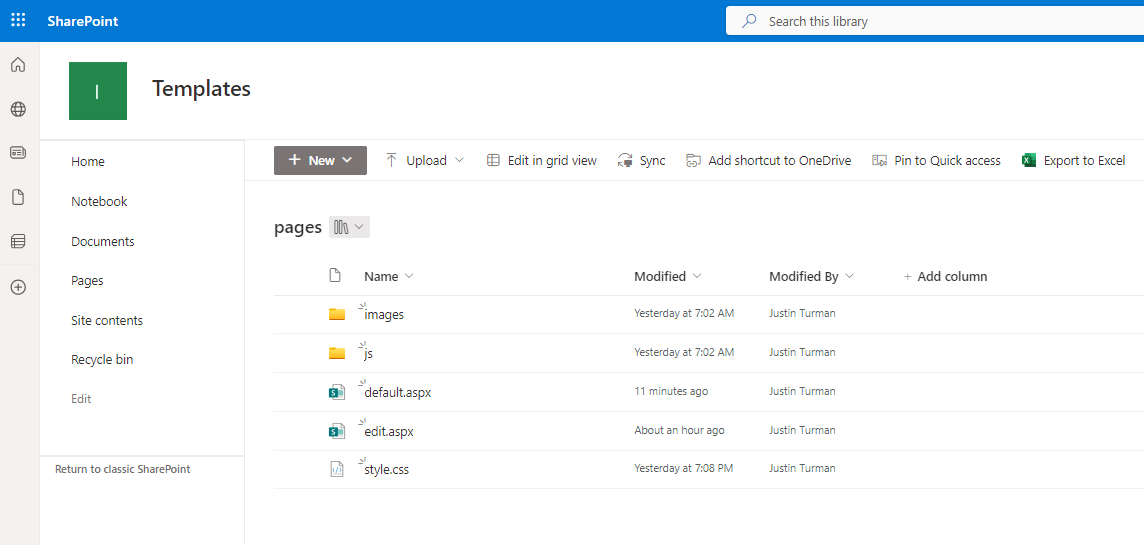
We have folders called "images" and "js" and files called default.aspx, edit.aspx, and style.css.
In the JS folder is a file javascript.js. Open it in a text editor and replace the eight instances of /sites/legal/templates with the path to your Templates SharePoint. Back in the top folder open the file default.aspx and do the same for the 10 instances. And the same for edit.aspx.
Team SharePoint
Now the team wishing to display their templates to people outside the department needs to have their own SharePoint. I created a SharePoint at https://automateofficework.sharepoint.com/sites/legal/diagnostics. The SharePoint can be located anywhere as long as the portion before sharepoint.com matches that of your Templates SharePoint. You will need to have Modern Script Editor turned on.
Now create a new page or edit a page. Hover over the page until a Plus Sign appears and click it. Select or search for "Modern Script Editor" and click it. A box appears that says "Teh Modern Script Editor web part!" with a button that says "Edit snippet". Click the button to start editing.
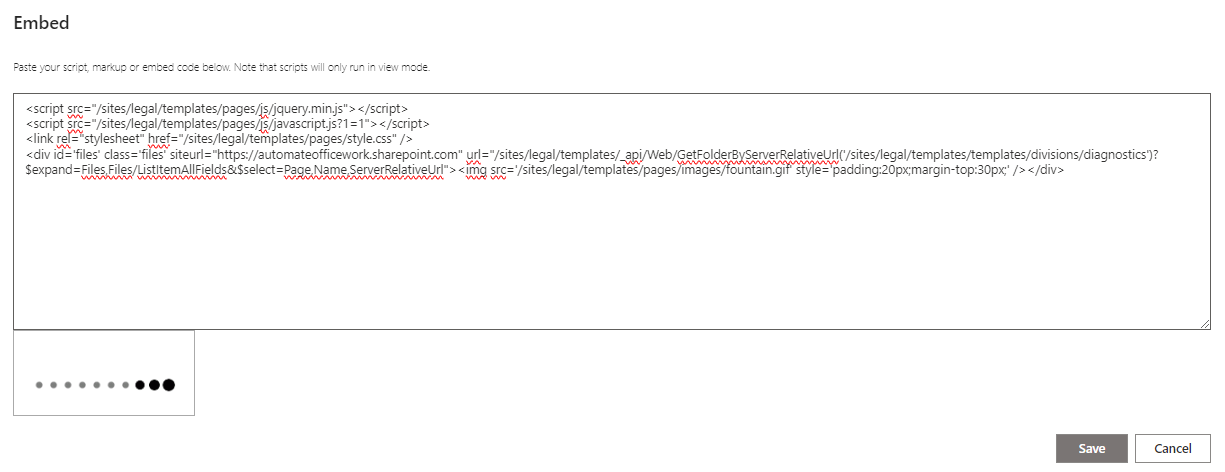
Inside the edit box copy and paste:
<script src="/sites/legal/templates/pages/js/jquery.min.js"></script>
<script src="/sites/legal/templates/pages/js/javascript.js?1=1"></script>
<link rel="stylesheet" href="/sites/legal/templates/pages/style.css" />
<div id='files' class='files' siteurl="https://automateofficework.sharepoint.com" url="/sites/legal/templates/_api/Web/GetFolderByServerRelativeUrl('/sites/legal/templates/templates/divisions/diagnostics')?$expand=Files,Files/ListItemAllFields&$select=Page,Name,ServerRelativeUrl"><img src='/sites/legal/templates/pages/images/fountain.gif' style='padding:20px;margin-top:30px;' /></div>
You will need to replace /sites/legal/templates with the path to your own Templates SharePoint. Also replace automateofficework.sharepoint.com with your own URL. And the portion inside the parentheses after GetFolderByServerRelativeUrl is where you put the path to the folder of templates you wish to display. Click Save. Click "Republish" in the top right corner.
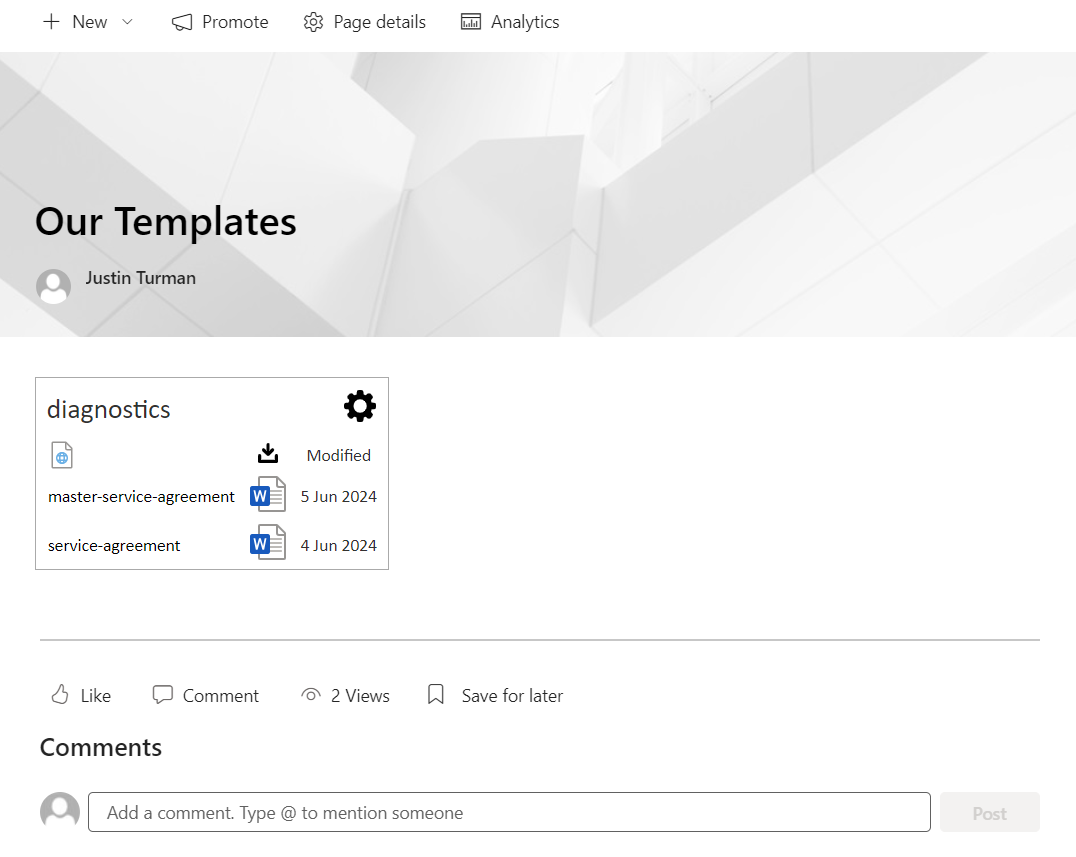
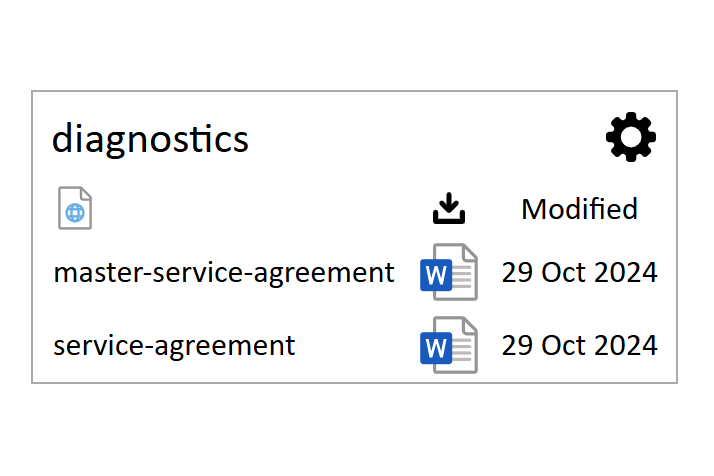
The page should refresh and you can see a box filled in with templates from the folder you specified. If you have edit rights for the files you should see a Gear icon. Clicking this opens the folder in SharePoint where you can manage the files directly. Clicking on the Word icon downloads a copy of the file to your computer. You can make it so your browser automatically opens downloaded Word documents. And clicking on the name of the file opens a unique page. If the page is blank, you have some typing to do. Below is what a fully typed page looks like.
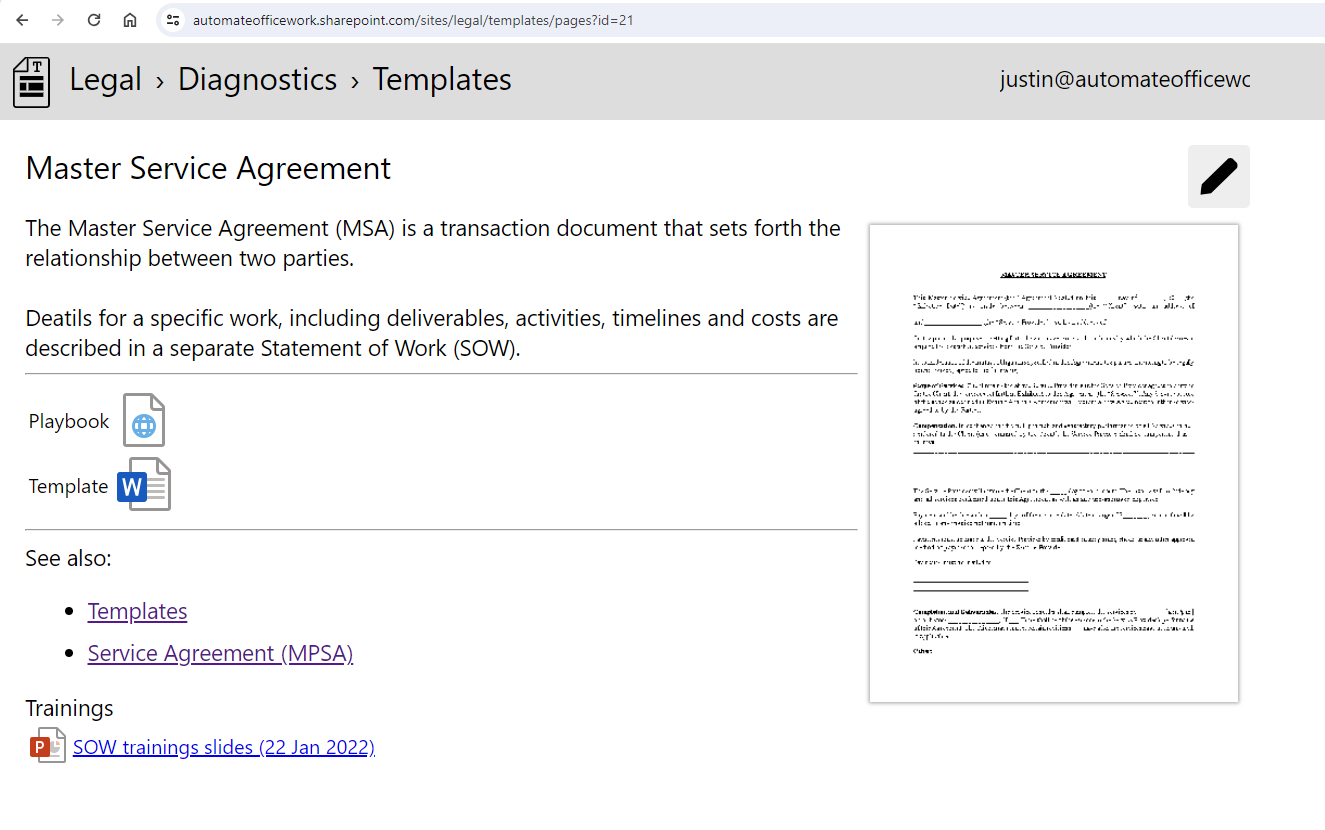
People with edit rights of the file can click on the pencil icon in the top right corner to edit this page.
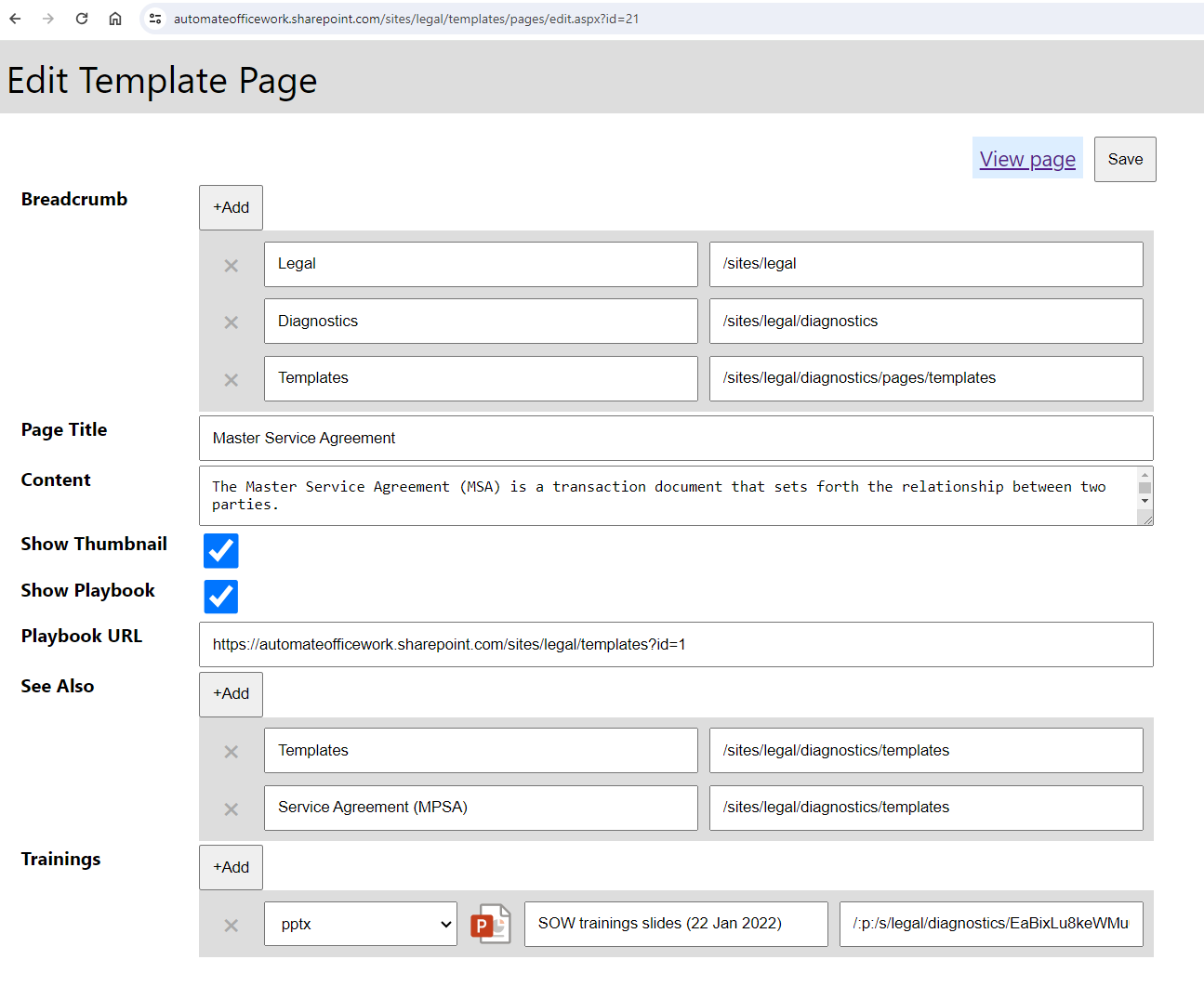
The Breadcrumb creates the path of pages in the header. The rest should be self-explanatory. Save your changes when done and "View page" to see the updated version.
We have not talked about playbooks yet, but this is a place where you can indicate that there is a playbook associated with the template and you can give the URL of where it is located.