




SharePoint CRUD
Any application we create must do a minimum of four things with data: Create, Retrieve, Update and Delete. Here's how to create a minimal application in SharePoint.
First you'll need to go to https://automateofficework.com/sharepoint to get the SharePoint web part that I created. Instructions are there for how to install it so you have it available as a Web Part on your SharePoint.
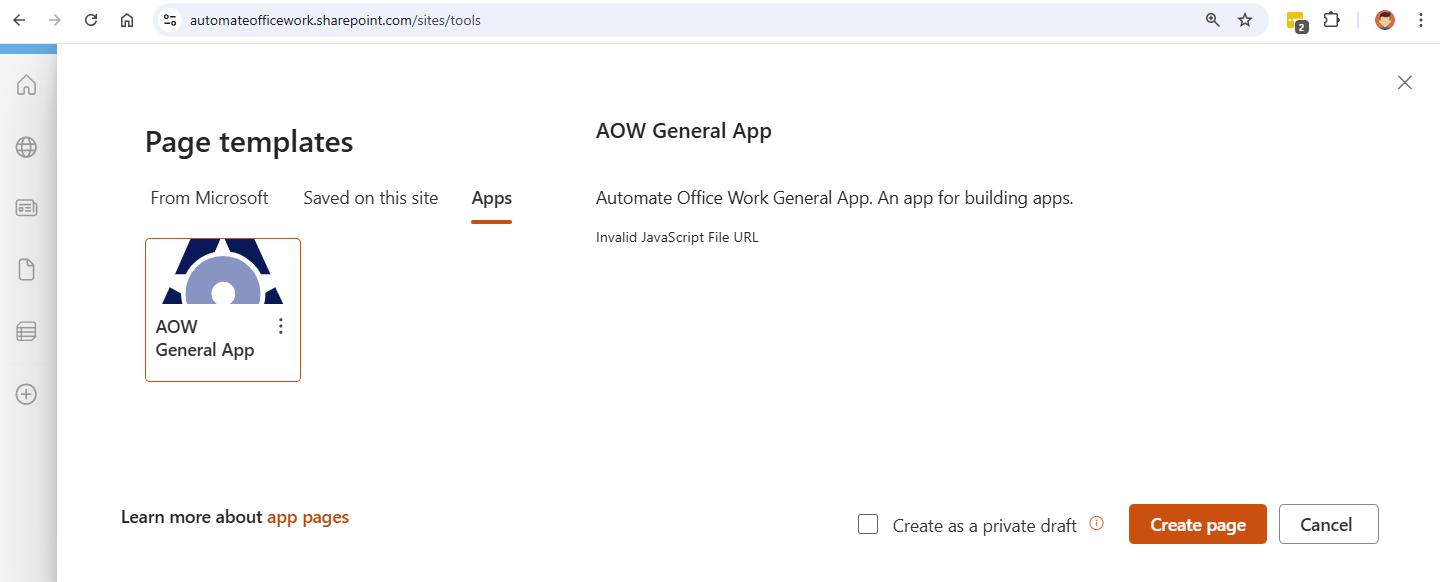
Now go to your SharePoint's home page and click +New > Page. Select "Apps" from the tabs at the top and then "AOW General App". Create the page.
Give your page a Title. I don't want it to show in my site navigation. And point to a URL where your javascript file will be located. My JavaScript file will be called crud.js. I will put it at https://automateofficework.sharepoint.com/sites/tools/siteassets/crud.js on my SharePoint.
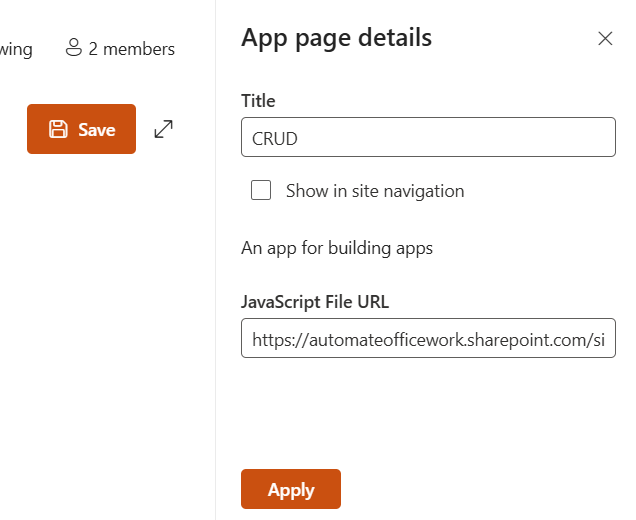
Apply the changes and save the page. Then create your javascript file locally on your computer and upload it to your SharePoint. Here is the entire JavaScript code we will use for this project. crud.js:
var html=`
<style>
    .aowelement{
        padding:20px;
    }
    #cruditems{
        border-collapse:collapse;
        width:238px;
        margin-bottom:10px;
    }
    #cruditems tr{
        border:1px solid #000;
    }
    #cruditems td{
        padding:10px;
    }
    .delete{
        cursor:pointer;
        color:#aaa;
        width:1px;
    }
    .delete:hover{
        background-color:#fdd;
        color:#f00;
    }
    .updatecell{
        padding:0 !important;
        width:1px;
    }
    input,button{
        padding:10px;
    }
</style>
<img id='loader' src='/sites/legal/images1/fountain.gif' />
<table id='cruditems'></table>
<input type='text' id='newitem' /><button id='submitnewitem'>+New</button>
`;
$(".aowelement").html(html);
$.ajax({
    url:"/sites/tools/_api/web/lists/getbytitle('crud')/items",
    headers:{
        "accept":"application/json;odata=nometadata"
    }
}).done(function(data){
    var html="";
    data.value.forEach(function(i){
        html+="<tr itemid='"+i.Id+"'><td class='delete'>?</td><td contenteditable='true' class='text' olddata='"+i.Title+"'>"+i.Title+"</td><td class='updatecell'><button class='update'>Update</button></td></tr>";
    });
    $("#loader").hide();
    $("#cruditems").html(html);
}).fail(function(error){
    console.log(error);
});
$("#newitem").focus();
$("#newitem").on('keypress',function(e){
    if(e.which == 13) {
        $("#submitnewitem").click();
    }
});
$("body").on("click","#submitnewitem",function(){
    var newitem=$("#newitem").val().trim();
    if(newitem!==""){
        $("#submitnewitem").prop("disabled",true);
        var found=false;
        $("#cruditems tr td.text").each(function(){
                if(newitem.toLowerCase()==$(this).text().toLowerCase()){
                        found=true;
                }
        });
        if(found){
                alert("There is already an item with that name");
                $("#submitnewitem").prop("disabled",false);
                $("#newitem").focus();
        }else{
            $.ajax({
                url: "/sites/tools/_api/contextinfo",
                method:"POST",
                headers: {
                    "accept":"application/json; odata=verbose"
                }
            }).done(function(rd){
                requestdigest=rd.d.GetContextWebInformation.FormDigestValue;
                $.ajax({
                    url: "/sites/tools/_api/web/lists/getbytitle('crud')/items",
                    method:"POST",
                    headers: {
                        "accept":"application/json; odata=verbose",
                        "content-type":"application/json; odata=verbose",
                        "X-RequestDigest":requestdigest
                    },
                    data:JSON.stringify({
                        "__metadata": {
                            "type": "SP.Data.CrudListItem"
                        },
                        "Title": newitem
                    })
                }).done(function(data){
                    var newid=data.d.Id;
                    var html="<tr itemid='"+newid+"'><td class='delete'>?</td><td contenteditable='true' class='text' olddata='"+newitem+"'>"+newitem+"</td><td class='updatecell'><button class='update'>Update</button></td></tr>";
                    $("#cruditems").append(html);
                    $("#newitem").val("").focus();
                    $("#submitnewitem").prop("disabled",false);
                }).fail(function(error){
                    console.log(JSON.stringify(erorr));
                });
            }).fail(function(error){
                console.log(JSON.stringify(erorr));
            });
        }
    }
});
$("body").on("click",".delete",function(){
    var r=confirm("Do you really want to delete this item?");
    if(r){
        var itemid=$(this).closest("tr").attr("itemid");
        var thisrow=$(this).closest("tr");
        $.ajax({
            url: "/sites/tools/_api/contextinfo",
            method:"POST",
            headers: {
                "accept":"application/json; odata=verbose"
            }
        }).done(function(rd){
            requestdigest=rd.d.GetContextWebInformation.FormDigestValue;
             $.ajax({
                url: "/sites/tools/_api/web/lists/getbytitle('crud')/items("+itemid+")",
                method:"POST",
                headers: {
                    "accept":"application/json;odata=verbose",
                    "content-type":"application/json;odata=verbose",
                    "X-RequestDigest":requestdigest,
                    "X-HTTP-METHOD":"DELETE",
                    "IF-MATCH":"*"
                }
            }).done(function(data){
                console.log(data);
                thisrow.remove();
            }).fail(function(error){
                console.log(JSON.stringify(erorr));
            });
        }).fail(function(error){
            console.log(JSON.stringify(erorr));
        });
    }
});
$("body").on("click",".update",function(){
    var thisbutton=$(this);
    var itemid=$(this).closest("tr").attr("itemid");
    var olddata=$(this).closest("tr").find("td.text").attr("olddata");
    var newdata=$(this).closest("tr").find("td.text").text().trim();
    var found=false;
    $("#cruditems td.text").each(function(){
        if($(this).closest("tr").attr("itemid")!==itemid){
            if($(this).text().toLowerCase()==newdata.toLowerCase()){
                found=true;
            }
        }
    });
    if(found){
        alert("There is another item with that name");
        thisbutton.closest("tr").find("td.text").text(olddata);
    }else if(olddata!==newdata){
        thisbutton.prop("disabled",true);
        $.ajax({
            url: "/sites/tools/_api/contextinfo",
            method:"POST",
            headers: {
                "accept":"application/json; odata=verbose"
            }
        }).done(function(rd){
            requestdigest=rd.d.GetContextWebInformation.FormDigestValue;
             $.ajax({
                url: "/sites/tools/_api/web/lists/getbytitle('crud')/items("+itemid+")",
                method:"POST",
                headers: {
                    "accept":"application/json;odata=verbose",
                    "content-type":"application/json;odata=verbose",
                    "X-RequestDigest":requestdigest,
                    "X-HTTP-METHOD":"MERGE",
                    "IF-MATCH":"*"
                },
                data:JSON.stringify({
                    "__metadata":{
                        "type":"SP.Data.CrudListItem"
                    },
                    "Title":newdata
                })
            }).done(function(data){
                thisbutton.prop("disabled",false);
                thisbutton.closest("tr").find("td.text").attr("olddata",newdata);
            }).fail(function(error){
                console.log(JSON.stringify(erorr));
            });
        }).fail(function(error){
            console.log(JSON.stringify(erorr));
        });
    }
});
Instead of /tools/ you will need to put in the URL for your own SharePoint. Upload the javascript file to the location and refresh the page.
If you open the developer tools (F12) and look in the Console tab you should see an error: Failed to load resource: the server responded with a status of 404 ()
This is because the SharePoint list named 'crud' doesn't exist yet. We have to create it. Go to your site contents and create a list called 'crud'.
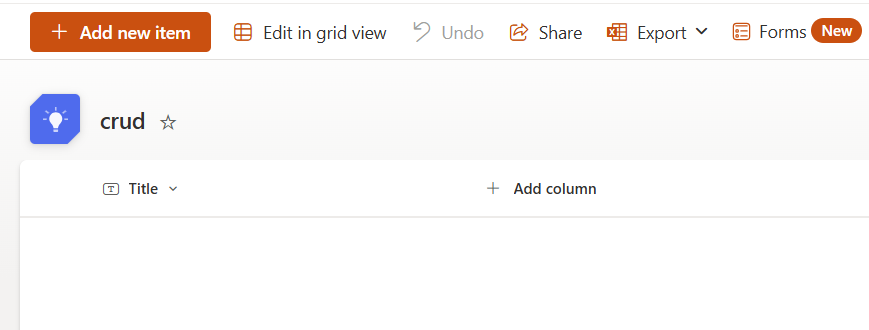
I'll add a couple of items to my list: Red, Green, Blue
Retrieve
I refresh my SharePoint page and see the below screenshot:
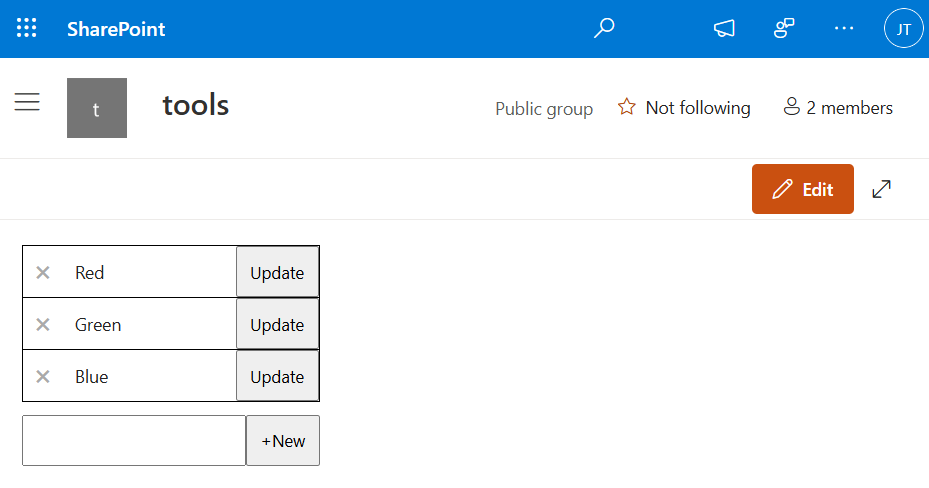
These list items are taken from the 'crud' list and displayed on the page for our user to interact with. This is the Retrieval part of CRUD and it's in our JavaScript lines 39-53. As each item is taken from the SharePoint list our JavaScript creates an HTML table row with delete and update buttons.
Create
We have a text input and a +New button for the user to add a new item. Lines 55-111 listen for when the user presses Enter or clicks +New to add a new item. We only go forward if the new item submitted is not blank. We then look to see if the new item's name is already present on the list. If it is the user gets a popup saying there is already an item with that name. If not then we get a requestdigest token that allows us to make changes to the list on the user's behalf for then next step where we actually add the item to the list. Then we add the new row to the data, clear out the new item text area, put the cursor in it and make the +New button clickable again.
Delete
Each item has an X for deleting. Lines 112-145 listen for the clicking of these X's. First we give a popup asking the user to confirm that they really want to delete the item. When confirmed we send a command to the SharePoint API to delete the item and we remove the row.
Update
Lastly, the user can rename an item and click Update. Lines 146-198 take care of this. First we check if there is already an item with the new name. If there is, the user gets a popup about this and the new name they gave is undone. Otherwise the item is renamed.
Conclusion
You are now able to do the most basic actions in SharePoint. You can now put these simple actions together in complex ways to give your users the exact experience you want them to have when manipulating data. You can, for example, look up a user on a list and then present them with the exact buttons you want to have available to them to take actions at a certain stage.
The SharePoint API is also a great thing to learn since you can take just about every action in SharePoint on your user's behalf. Anything your user was doing in a manual way, you can now give them a button that automates all those actions.
Where to go from here
Take an hour and learn HTML. Take an hour and learn CSS. Take an hour and learn about JavaScript. In this tutorial I used a JavaScript library called jQuery because it is very easy to do complex things quickly. Lastly, learn the SharePoint API.
If you need help, reach out to me. You can also buy solutions I've already built and then tweak them to fit your exact needs. Or you could just hire me to do the entire thing. Let's connect.
I want to hide the SharePoint stuff on my page
Great. Just add the below code to your JavaScript file:
$("button[data-automation-id=pageCommandBarFocusModeButton]").click();
$("#SuiteNavWrapper,#spSiteHeader,#spCommandBar").hide();
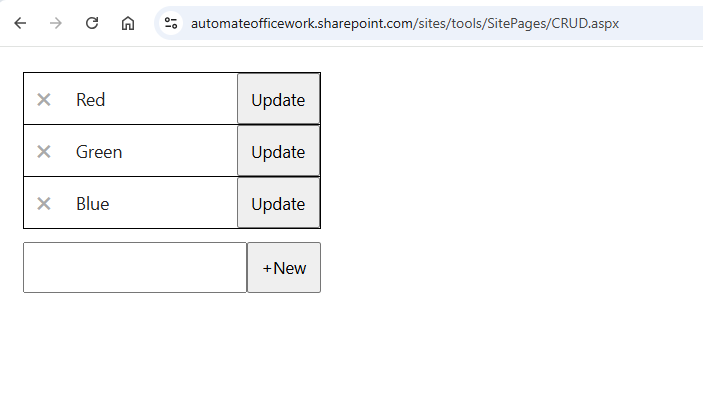
A SharePoint page with none of the SharePoint banners or navigation